Quick Start Guide
Get your first app running in under 10 minutes
Last updated About 1 year ago
🚀 What You'll Build
In the next 10 minutes, you'll create a fully functional web application with:
Modern React frontend with Tailwind CSS
Backend API with MongoDB database
Automatic GitLab version control
Live preview you can interact with
The ability to publish to a live URL
Step 1: Access Kolega Studio (30 seconds)
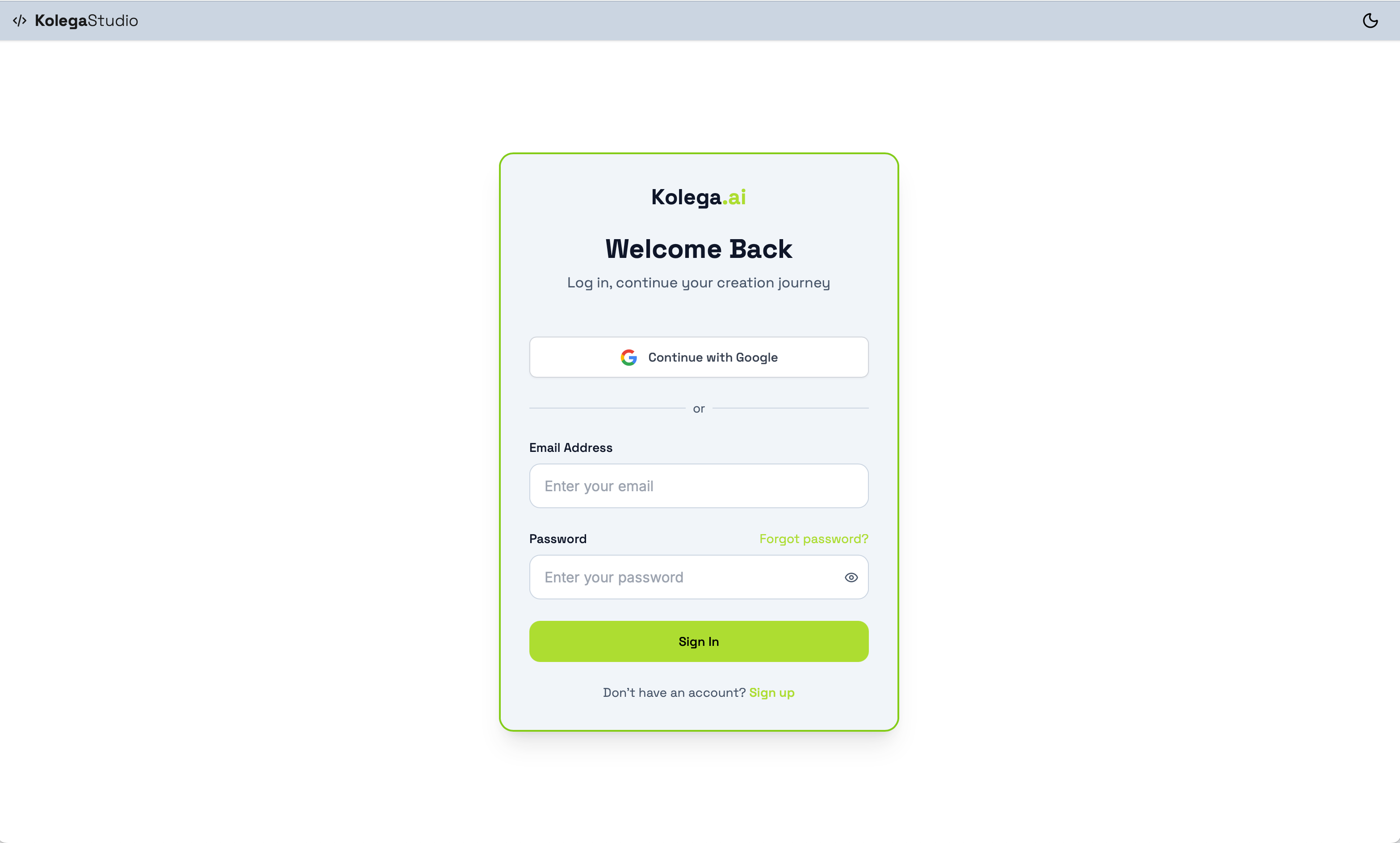
Open your browser and go to: studio.kolega.ai
Log in with your credentials
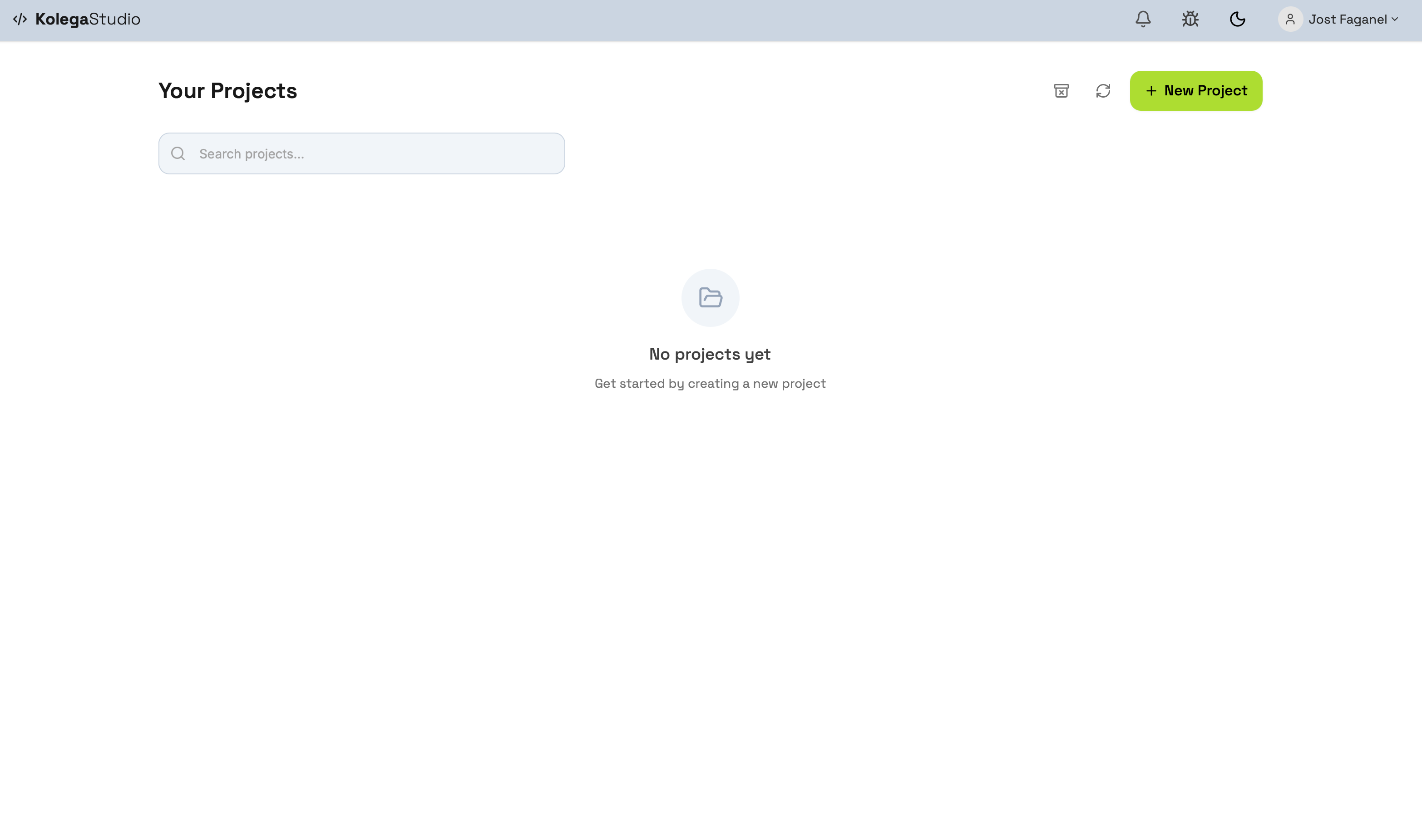
You'll see your project dashboard
You're in when you see:
Your name in the top right corner
Any existing projects as cards
A "+ New Project" button
Step 2: Create Your First Project (1 minute)
Click "+ New Project" button
Enter project name: "My First App" (or your choice)
Select template:
Creator Tier: "Full Stack App" (only option)
Pro Tier: Choose from:
Full Stack App (recommended for first project)
Mobile App (requires Expo setup)
Build from Scratch
Click "Create Project"
Wait for initialization (few seconds)
Step 3: Understand Your Workspace
Your screen now has three main areas:
Left Panel - Thread Management
Threads = Separate conversations within your project
Each thread has its own context
Helps separate specific project instructions during the creation of your project
Can rename or delete threads
Center Panel - Chat
Where you describe what to build
Can upload images and files
Your inputs appear in green (right side)
Agent responses on left
Right Panel - 6 Important Tabs
📱 Preview - See a live preview of your application
📊 Monitor - Watch Kolega Studio work in real-time
💻 Code Viewer - Browse through your project files and code
🗄 Database Viewer - View your application data in the database
📁 Project Files - Upload project files, images and other project assets
⚙️ Project Settings - General settings, environment variables, publishing, revision
Step 4: Build Your First Feature (3-5 minutes)
Option A: Quick Build (Single Thread)
In the chat panel, type:
I want to create a Task Management App where users can:
- Create, edit, and delete tasks
- Each task has title, description, due date, and status
- Show tasks in a card layout
- Add filters for completed/pending
- Use a modern UI with Tailwind CSS
- Connect to MongoDB for persistence
Option B: Best Practice (With Planning)
Start with a plan:
Create an implementation plan for a Task Management App with:
- CRUD operations for tasks
- Dashboard view with statistics
- Filtering and sorting
- MongoDB integration
- Modern UI design Save this as task_plan.md with phases and checkboxes.

Don't start coding yet - just create the plan.
Then in a new thread:
Proceed with Phase 1 of task_plan.md Step 5: Watch the Magic
What happens:
Monitor tab shows files being created
Code generation in progress
Preview tab updates automatically
Check your app:
Click Preview tab
Interact with it - everything works!
Try mobile view (📱 icon)
Switch back to desktop (🖥 icon)
Step 6: Make Quick Changes
Want to modify something? Just ask:
Examples:
"Change the primary color to blue"
"Add a search bar to the top"
"Make the cards have shadows and rounded corners"
"Add a dark mode toggle"
Kolega Studio will:
Update necessary files
Preview refreshes automatically
Changes appear instantly
Step 7: Check Your Database
Click Database Viewer tab
See your database collections
View and inspect stored data
Step 8: Publish Your App
Ready to go live?
Look for green "Publish" button (top bar)
Click it directly (publishes current version)
Wait for deployment
Get notification when complete
Your app is live at:
https://[unique-project-name].kolegaapps.com
Want a custom domain? See the Custom Domains Guide (Pro tier feature)
🎉 Congratulations!
You've just built and can deployed your first application!
What's Next?
Try These Quick Enhancements
Create new threads for each:
"Add user authentication with login/signup"
"Create a beautiful landing page"
"Add charts to show task statistics"
"Make it look like Notion's interface"
Explore Key Features
Code Viewer: See all generated code
Project Files: Upload logos/images (drag & drop)
Environment Variables: Add API keys (Settings tab)
Download Project Code: Settings → Revisions → Download ZIP
💡 Quick Tips for Success
Getting Better Results
Be specific: Include colours, layout, functionality details
Reference apps: "Make it look like Linear" or "Similar to Notion"
Use threads: New thread = fresh context = focus on specific tasks and project phases
Plan first: Create implementation plan to control the outcomes
Understanding Credits
Each agent interaction uses credits
Check balance: Account → Credits
Using threads saves credits
If Something Goes Wrong
Status orb yellow? Click it → "Reset Sandbox"
Preview not updating? Click refresh in Preview tab
Backend disconnected? Wait for auto-restart
Context window warning? Start new thread immediately
🚨 Common First-Timer Questions
Q: How do I see the code?
A: Click Code Viewer tab (<> icon) - browse all files
Q: Can I download my project?
A: Yes! Settings tab → Revisions → "📥 Download ZIP"
Q: How do I add images?
A: Project Files tab - drag & drop up to 50MB each
Q: What about version control?
A: Automatic GitLab commits happen regularly. You can rollback to previous versions anytime.
Q: Can I use my own domain?
A: Yes, as part of the Pro plan you purchase a domain in Project Settings or connect to an existing domain you own
Q: What if I run out of credits?
A: Check Account → Credits, Top-Up credits
🎯 10-Minute Challenge Checklist
[ ] Created project with Full Stack template
[ ] Built first feature with Kolega Studio
[ ] Tested in Preview (desktop & mobile)
[ ] Made at least one change
[ ] Checked Database Viewer
[ ] Ready to publish (optional)
📚 Quick Command Reference
Essential Commands
"Create a [type] app with [features]"

"Add [feature] to the existing app"

"Change [element] to [specification]"

"Test everything using the browser agent"

"Create an implementation plan for [project]"
Advanced Commands
"Create implementation_plan.md first"

"Proceed with Phase X of the plan"

"Test and mark completed items"

"Fix all issues in one request: [list]"
⚡ Next Steps
Read: Interface Navigation Guide for complete tour
Learn: Essential Features Cookbook for recipes
Build: Your First Project guide for best practices
Explore: Templates guide for project ideas
🏆 You're Ready!
You now know enough to build real applications with Kolega Studio. The key is to start simple, use threads wisely, and let the AI agents do the heavy lifting.
Pro tip: The more specific you are, the better the results. Don't be afraid to reference existing apps or describe exactly what you want.
Remember:
Threads are your friend (focus outcomes and save credits)
Planning first saves time
Everything is automatically saved
You can always download your project
Happy building! 🚀
Still need help? Share an idea